

Wireless network eduroam
As a student at Karolinska Institutet, you have access to the eduroam wireless network.
Follow the instructions below to set up eduroam on your device. You only need to do this once.
After that, your device will automatically connect whenever the netork is available.
Eduroam is available at many universities and higher education institutions, both in Sweden and around the world. When using eduroam outside KI, you should still use your Karolinska Institutet login details and settings.
Connect to eduroam
Step 1:
Open the list of wireless networks on your device and select eduroam.
Step 2:
Sign in using your KI ID/username followed by @ki.se, and your KI password (the same password you use for Canvas, for example).
Example:
Username: alfbagh16@ki.se
Password: your KI password.
Not working? Try signing in with just your KI ID/username, without @ki.se.
On some mobile devices, you may need to enter the following settings:
- EAP method: PEAP
- Phase 2 authentication: MSCHAPV2
- CA certificate: Do not validate
- Identity: Your KI ID followed by @ki.se (e.g. alfbagh16@ki.se)
- Password: Your KI password (same as for Canvas for example)
- Domain: ki.se (if your device asks for a domain)
Step 3:
Tap Connect or Done. You should now be connected to eduroam.
Having problems connecting to eduroam?
Forget the eduroam network
Open the list of wireless networks on your device, select eduroam and Forget the network:
Once you have forgotten the network, restart your device.
Then follow our guide to set up and connect to eduroam again from the beginning.
Have you changed your password?
If you have recently changed your KI password, you will need to update your saved login details and use your new password when connecting to eduroam.
Tip! If eduroam still isn't working, certain special characters in your password may be causing the issue. Try changing your password and using a different special character instead of, for example, @, $ or £.
Remove an eduroam profile
On Apple devices, it may sometimes be necessary to remove a previously installed eduroam profile. If the issue persists, you may also need to delete saved login credentials from Keychain Access (Mac). This ensures that eduroam uses your current settings and login details.
Mac
- Open System Settings from the Apple menu.
- Go to General → Device Management (or Profiles in earlier versions of macOS).
- If an eduroam profile is listed, select it and click Remove.
- Go to System Settings → Wi-Fi.
- Find eduroam under Known Networks and select Remove from list or Forget This Network.
- Restart your Mac.
- If problems persist, open Keychain Access via Applications → Utilities, search for entries containing eduroam and delete them.
- Then follow the guide to connect to eduroam again.
iPhone/iPad
- Open Settings → General → VPN and Device Management.
- If an eduroam profile is listed, select it and tap Remove Profile.
- Go to Settings → Wi-Fi.
- Tap the information icon (i) next to eduroam and select Forget This Network.
- Restart your device.
- Then follow the guide to connect to eduroam again.
Fixed MAC address for eduroam
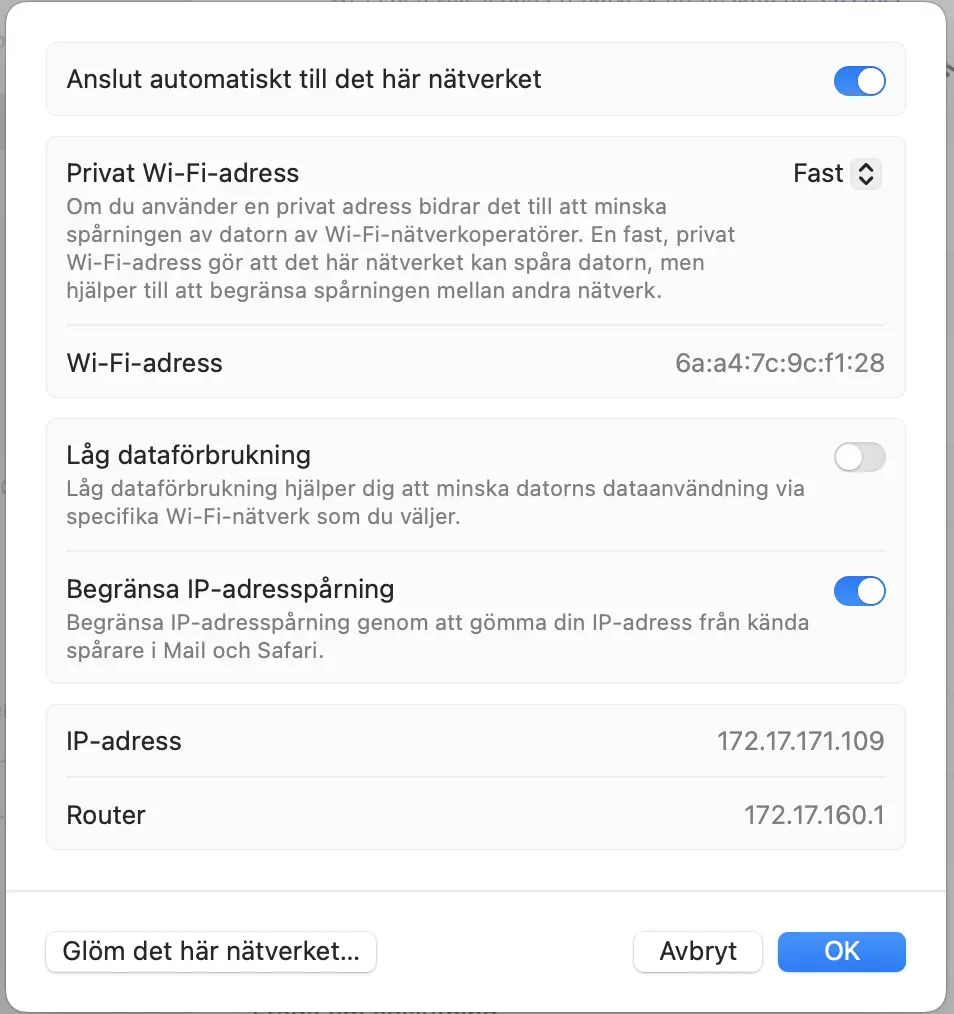
If you're having trouble connecting to eduroam, using a fixed MAC address for the network may help. You can do this by changing the Private Wi‑Fi Address setting for eduroam.
Use a fixed MAC address for eduroam.
- Click the Apple menu and select System Settings.
- Select Wi-Fi from the sidebar.
- Click Details next to eduroam.
- Under Private Wi-Fi Address, select Fixed.
- Save the change if prompted.
Important
When you use a fixed MAC address, the same device identifier is used every time you connect to eduroam. This can make your device easier to recognise over time compared to using a private or randomised MAC address.
If privacy is important to you, keep this difference in mind when choosing your Wi‑Fi settings.